Overview
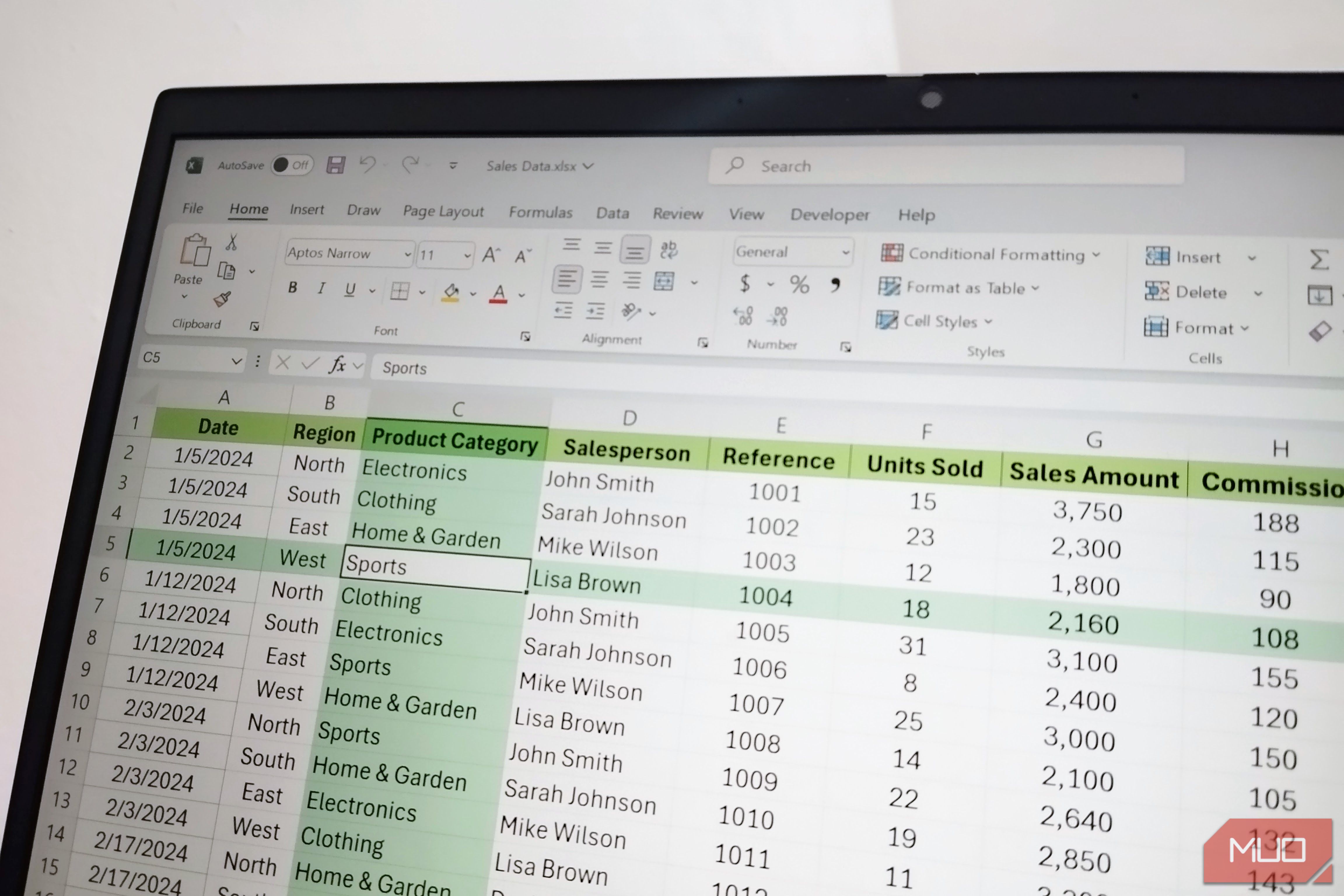
If you're like millions of Excel users, you probably press Ctrl+C and Ctrl+V countless times each day. But there's a key combination—Ctrl+G—that most never touch. That's a missed opportunity because the Go To dialog box that appears is only the entrance. Behind a modest button labeled “Special” lies a powerful suite of cleanup tools that can transform how you handle messy spreadsheets. This guide will walk you through the Go To Special feature, showing you how to quickly find and fix blank cells, constants, formulas, and more. By the end, you'll have a new go‑to method for scrubbing your data clean.
Prerequisites
To follow along, you'll need:
- Microsoft Excel 2010 or later (the steps are similar in Excel for Microsoft 365)
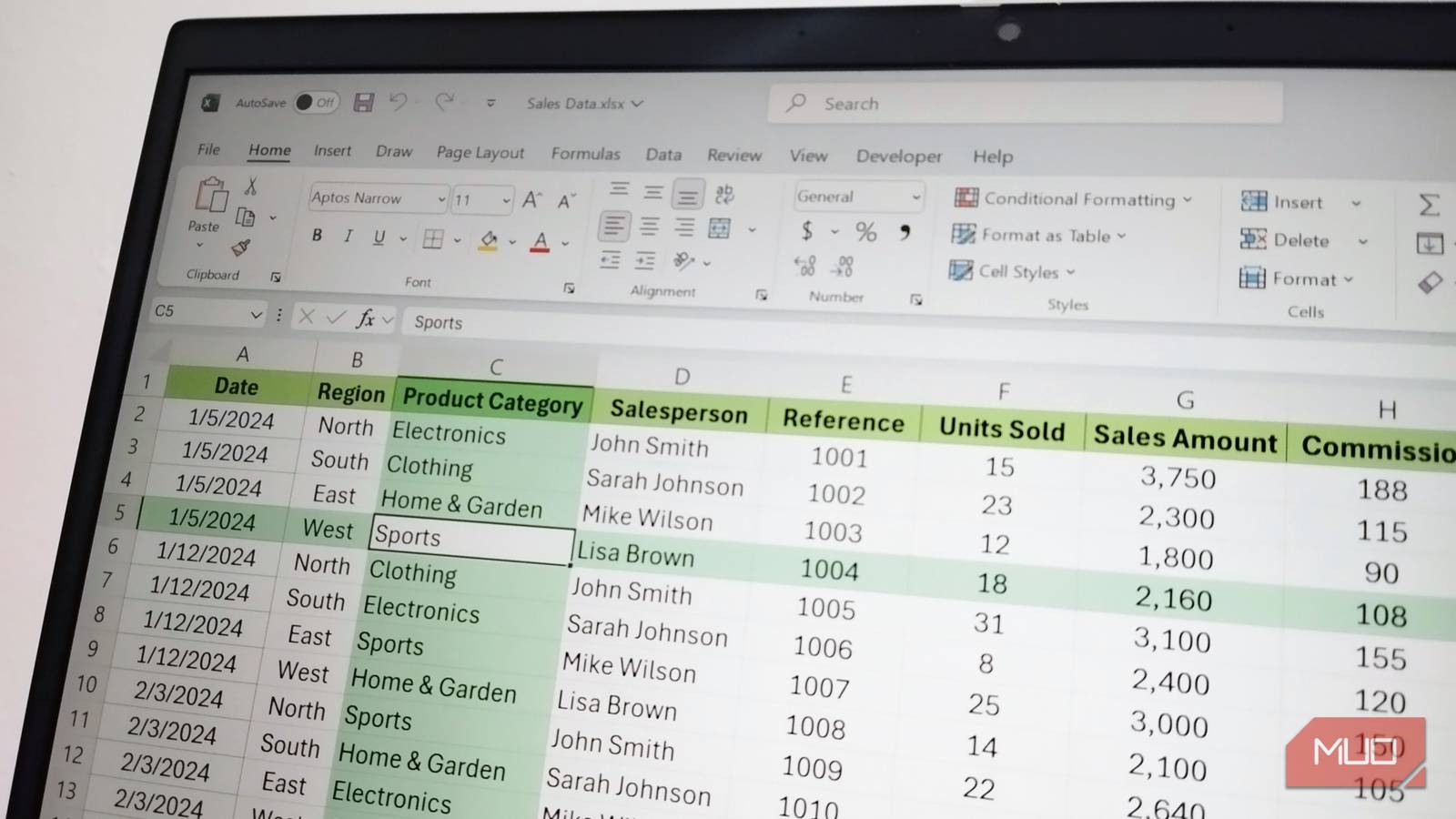
- A workbook with data you want to clean up (or a sample sheet to practice on)
- Basic familiarity with Excel's interface (selecting cells, using the ribbon)
No advanced formulas or macros are required—just a willingness to try a keyboard shortcut that could change your workflow.
Step‑by‑Step Instructions
1. Open the Go To Dialog
The first step is simple: press Ctrl+G on your keyboard. Alternatively, you can go to the Home tab, click on “Find & Select” in the Editing group, and choose “Go To…”. Either way, a dialog box titled “Go To” appears. This list shows named ranges or recent selections, but we're not interested in that now—we want the door behind the “Special” button.
2. Click the Special Button
In the lower‑left corner of the Go To dialog, you'll find a button labeled “Special…”. Click it. The “Go To Special” dialog box opens, revealing a list of options. This is the heart of the cleanup trick. Each radio button corresponds to a specific type of cell content or property. Let's explore the most useful ones for data cleaning.
3. Selecting and Deleting Blank Cells
One of the most common cleanup tasks is removing blank rows or columns. Here's how Go To Special makes it easy:
- Highlight the entire data range you want to clean (e.g., Ctrl+A on a contiguous block).
- Press Ctrl+G then click “Special”.
- Select “Blanks” and click OK. Now only the empty cells in your selection are highlighted.
- Right‑click any of the selected blank cells and choose “Delete…”. In the dialog, pick “Shift cells up” or “Delete entire row/column” as needed. For blank rows, choose “Entire row”.
This method is far faster than manually scanning for empty cells and removes them cleanly without disturbing the rest of your data.
4. Working with Constants
Sometimes you need to identify all cells that contain constants (numbers, text, dates) versus formulas. Go To Special can help:
- Select your data range.
- Open Go To Special (Ctrl+G → Special).
- Choose “Constants” and click OK. Excel selects all cells that hold static values.
- Now you can apply formatting (e.g., make them bold, change font color) or copy them to another location. To clear constants while leaving formulas untouched, press Delete after the selection.
This trick is especially handy when you want to quickly highlight input cells in a financial model.
5. Spotting and Fixing Formula Issues
Formulas can hide errors, and Go To Special provides a systematic way to inspect them:
- Select the area containing formulas.
- Go To Special and choose “Formulas”. You'll see sub‑options: Numbers, Text, Logicals, Errors. Check or uncheck as needed.
- Click OK. All formula cells that match your criteria are selected. For example, to find only formula errors, check “Errors” only.
- With the selection active, you can trace precedents (Ctrl+[), evaluate the formula (F9), or delete the erroneous formulas.
This is far more efficient than scrolling through hundreds of rows looking for #VALUE! or #DIV/0!.
6. Additional Useful Options
The Go To Special dialog offers several other gems:
- Comments: Select all cells containing comments. Great for reviewing or deleting leftover notes.
- Conditional Formats: Quickly jump to cells with conditional formatting rules applied.
- Data Validation: Highlight all cells with data validation. Useful for auditing dropdown lists.
- Last Cell: Excel's representation of the last used cell in the worksheet. Use it to reset the used range before saving.
Experiment with each option to discover how they can streamline your cleaning tasks.
Common Mistakes
Forgetting to Select the Right Range First
Go To Special works on the current selection. If you haven't selected any cells, it defaults to the entire sheet. That can lead to unintended modifications (e.g., deleting blanks across the whole sheet). Always select the relevant data range before pressing Ctrl+G.
Misunderstanding “Blank vs. Empty”
A cell that contains an empty string "" (from a formula) is not considered blank by Go To Special's “Blanks” option. Only truly empty cells (those that have never contained data or were explicitly cleared) are selected. If you have formulas returning "", you'll need a different approach (e.g., using a filter or ISBLANK in a helper column).
Not Using the Sub‑options for Constants and Formulas
When you choose “Constants” or “Formulas”, the sub‑options (Numbers, Text, Logicals, Errors) are all checked by default. If you only want, say, text constants, uncheck the others. Skipping this step may select more cells than intended.
Forgetting to Click Special
It's easy to press Ctrl+G, see the Go To dialog, and then just click OK or double‑click a reference—forgetting about the Special button entirely. Always look for that button in the bottom left. It's the gateway to all the cleanup power.
Summary
The Go To Special command, accessed via Ctrl+G then the Special button, is one of Excel's most underutilized features for data cleanup. By selecting Blanks, Constants, Formulas, or other options, you can rapidly identify and remove unwanted cells, highlight specific content, and audit formula errors. The key is to first select your target range, use the appropriate option, and leverage the sub‑options to fine‑tune your selection. Avoiding common pitfalls—like failing to set a proper range or ignoring the sub‑options—will make you more efficient. Next time you're faced with a messy spreadsheet, remember this hidden gem behind Ctrl+G.