Overview
At Google I/O 2026, the Google TV team announced an exciting new feature that transforms the way you interact with your TV: pointer remote support. This functionality turns your existing remote into a motion-controlled pointer, similar to a Nintendo Wii Remote (Wiimote), allowing you to navigate Google TV's interface with a simple point-and-click motion. Instead of tediously pressing directional buttons, you can now aim your remote at the screen to move a cursor, click on apps, scroll through lists, and select content with unprecedented speed. This guide will walk you through everything you need to know to set up and use this feature effectively, from prerequisites to common pitfalls.

Prerequisites
Before you can enjoy pointer remote navigation, ensure your setup meets the following requirements:
- Compatible Google TV device: Most Google TV devices (e.g., Chromecast with Google TV, Sony or TCL TVs running Google TV) released after 2023 should support the feature. Check your device's specifications.
- Updated remote: The pointer function requires a remote with built-in gyroscope or accelerometer sensors. If your remote is older, consider upgrading to a compatible model (e.g., the latest Google TV remote with motion sensors).
- Software version: Ensure your Google TV is running the latest firmware (Android TV OS version that includes pointer support). Go to Settings > System > About > System update to check for updates.
- Batteries: Pointer mode uses more power. Use fresh or rechargeable batteries to avoid interruptions.
- Line-of-sight: While not strictly necessary, pointer performance improves when the remote has a clear line-of-sight to the TV's IR or Bluetooth receiver.
Step-by-Step Instructions
1. Enable Pointer Remote Mode
- Press the Home button on your remote to open the Google TV interface.
- Navigate to Settings (gear icon) > Remotes & Accessories > Pointer Remote.
- Toggle the Enable Pointer switch to ON.
- You may see a prompt to calibrate – select Calibrate Now for optimal accuracy.
2. Calibrate Your Remote
Calibration ensures the remote's pointer corresponds accurately to your movements.
- Hold the remote flat on a stable surface (e.g., coffee table) and press the Calibrate button on screen.
- Keep the remote still for 3 seconds until a confirmation message appears.
- If you experience drift or misalignment later, recalibrate using the same steps.
3. Navigate the Interface with Point-and-Click
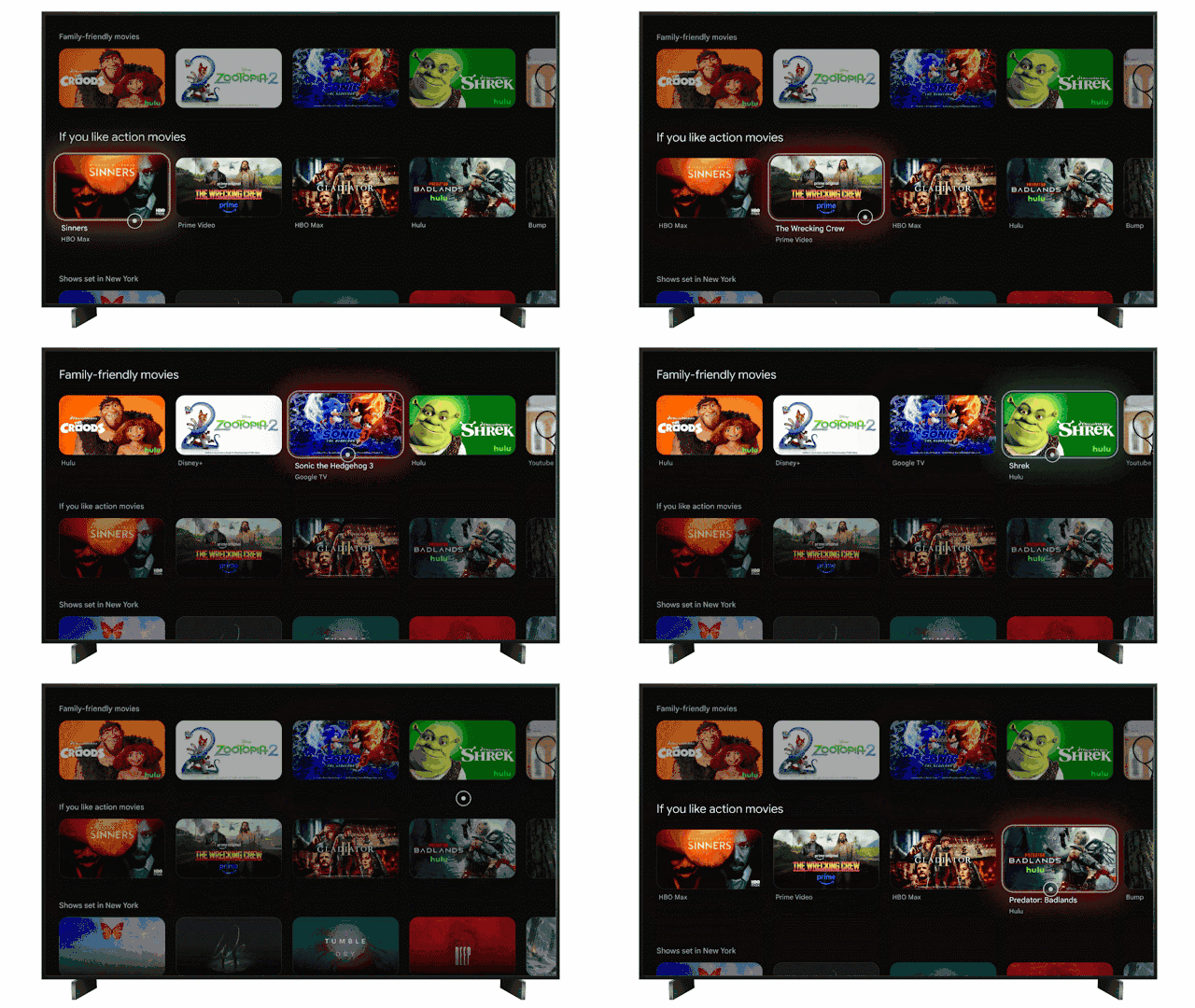
Once enabled, the pointer will appear as a small cursor on screen when you move the remote. Use these gestures:
- Move cursor: Simply aim the remote at the screen and move your wrist or arm. The cursor follows your motion.
- Click: Press the Select (center button) to activate the highlighted item.
- Scroll: To scroll long lists, move the cursor near the top or bottom edge of the screen – a scroll indicator will appear. Alternatively, use the D-pad while in pointer mode for fine control.
- Back: Press the Back button (arrow) to return to the previous screen.
- Home: Press the Home button to exit to the main menu.
4. Advanced Gestures and Shortcuts
Pointer mode unlocks additional shortcuts:
- Quick access to settings: Move cursor to the right edge of the screen and hold the Select button for 2 seconds to open Quick Settings.
- Switch between apps: Wave the remote in a horizontal motion (left-right) quickly to cycle through recent apps.
- Volume control: While in pointer mode, press and hold the Volume Up/Down buttons; the pointer will temporarily disappear, and volume changes are applied.
- Text input: In search fields, a floating keyboard appears – point to letters and click to type.
5. Disabling Pointer Mode
If you prefer traditional navigation, you can disable pointer mode at any time:
- Go to Settings > Remotes & Accessories > Pointer Remote and toggle Enable Pointer OFF.
- Alternatively, press and hold the Select button for 10 seconds – a prompt will appear to disable pointer mode.
Common Mistakes and Troubleshooting
Pointer Cursor Drifts or Jumps
Cause: The remote may have been moved during calibration or the sensors need recalibration.
Fix: Recalibrate the remote as described in step 2. Ensure you place the remote on a level surface and hold it still. Also, avoid using the remote near strong magnetic fields (e.g., speakers).
Remote Not Responding in Pointer Mode
Cause: Low batteries, Bluetooth interference, or outdated firmware.
Fix: Replace batteries, move closer to the TV, and check for system updates. If using a Bluetooth remote, try unpairing and re-pairing via Settings > Remotes & Accessories > Pair remote.
Accidental Activation of Pointer Mode
Cause: The remote may automatically enter pointer mode when moved sharply.
Fix: Adjust sensitivity in Settings > Remotes & Accessories > Pointer Remote Sensitivity – set to Low to require more deliberate motion. You can also disable pointer mode entirely when not needed.
Battery Drain
Cause: Pointer mode keeps sensors active, consuming more power.
Fix: Use high-quality rechargeable batteries and disable pointer mode when using traditional D-pad navigation. The remote will automatically enter a power-saving mode after 5 minutes of inactivity.
Misaligned Cursor on Different Screens
Cause: The pointer calibration may vary slightly across different apps or TV menus.
Fix: Most apps now support pointer input, but if an app doesn't, fall back to D-pad navigation. Google is working with developers to ensure broad compatibility. Recalibrate in the specific app if needed.
Summary
Google TV's pointer remote support, announced at I/O 2026, brings Wiimote-style point-and-click navigation to your TV, making browsing faster and more intuitive. By following this guide, you've learned how to enable, calibrate, and use pointer mode effectively, as well as common pitfalls to avoid. This feature is a game-changer for content discovery, especially when scrolling through large libraries of movies and apps. As Google continues to refine the experience, we can expect even more gesture controls and integrations. Update your Google TV today and start pointing your way to a better viewing experience.